
Add a Drawing as a Reference Model to a Building Model
You can add a drawing (VXP, DWG, or DXF) as a reference model to a building model and use it to help design structures.
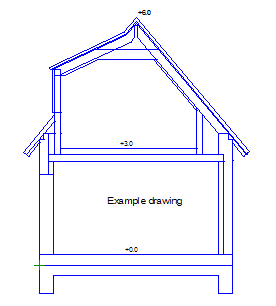
- Activate the model window of the building.
- Select Modeling | Drafting |
 Reference drawings >
  Reference drawing or model.
The program opens a search window, which you can use to search for a drawing from the archive. Click Cancel which will allow you to select a drawing file from disk.
- For example, select Vertex 2D drawings (*.vxp) as the file type .
- Select a folder and a file, and click Open.
The drawing limits are displayed in the cursor.
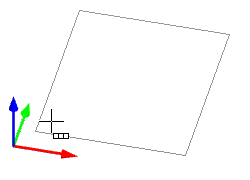
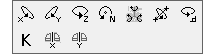
- Select an auxiliary function from the right-click menu, for example to rotate the drawing.
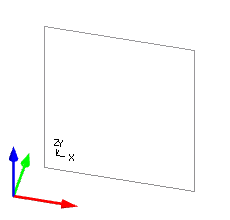
- Click the location of the drawing.
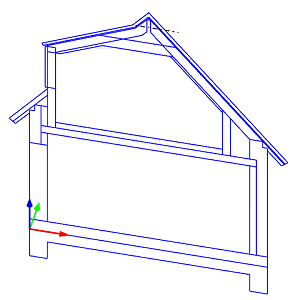
You can snap to the points in the drawing when you add structures to the model.
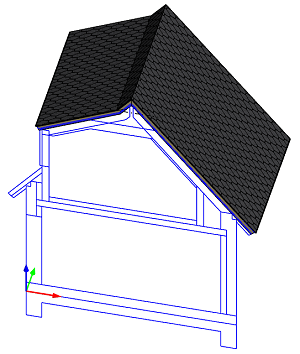
Note:
- Text in the drawing does not appear in the model. If you also want text to appear in the building model, first save the drawing as a model (VXM) and add it as a reference model to the building model as shown above. When selecting a reference model, select Vertex 3D models (*.vxm) as the file type (default file type).
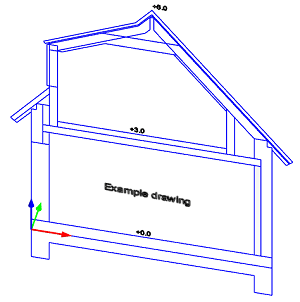
- You can move the drawing in the building model using the function Move a Reference Drawing. If necessary, you can select auxiliary functions from the right-click menu.
- You cannot select a drawing in the Sync service.