
Adding Dimension Tolerance
You can add a dimension tolerance when dimensioning, or later by selecting the dimension for editing.
Define the dimension tolerance properties, the tolerance symbol or deviations in the dialog box.
- Add a 2D drawing.
- Select the dimensioning function.
- Select the Edit dimension after adding function from the additional menu by clicking the button.

- Click the elements to be dimensioned.
- Click the position of the dimension.
- Select the tab Text in the dialog box.
- Enter the tolerance either in the Text editing window or Tolerance field.
- Select OK.
Example: Adding Dimension Tolerance
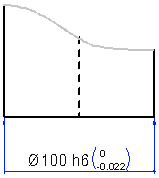
Add to the diameter dimension the dimension tolerance.
As tolerance symbol:
- Type in the Tolerance field the character string: h6. Confirm the markings data, and the tolerance symbol is displayed in the dimension figure.
As a deviation:
- Determine the dimension tolerance using deviations. Type in the Tolerance field the character string: +0.3 +0.1. Confirm the properties to display the deviation in the dimension figure.