
Cursor Snap Functions
You can snap to a point either by clicking with the cursor or by using general snap functions. Select a function from the context-sensitive menu or use a keyboard shortcut. The search function of the point reset relative displacement coordinates dx,dy,dz to the point searched, and then the point is a local zero point.
| Search | Keyboard command | |

|
To line Move the cursor near the line and select the snap function. |
Z |

|
Point Move the cursor near the point and select the snap function. |
X |

|
Center Point Move the cursor near the line and select the snap function. |
C |

|
Intersection Move the cursor near the intersection and select the snap function. |
S |

|
Middle Select the snap function and click two points or lines to snap halfway between. |
D |

|
To the center of an arc or closed polyline. Move the cursor near the arc and select the snap function. |
|
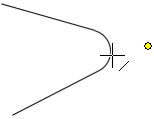
| Apparent intersection The function snaps to the imaginary intersection of the lines of a rounded corner. Select the snap function and click the arc.
|
||
| To the tangent point of an arc / center point of a circle Move the cursor near the arc and select the snap function. |
||

|
To face Move the cursor near the line in the model and select the snap function. |
Shift+M |

|
To the center point of a plane surface / corner point of an elbow. Move the cursor near the line in the model and select the snap function. |
Relative Snap
By pressing Shift+the key, you can snap to a point on an object without selecting the point, i.e. so that the relative offset coordinates are not reset. You can reset the offset coordinates after this by pressing the Q key, and, for example, locking the cursor and entering an offset from the point. The following relative snap functions are available:
- To line Shift+L
- To point Shift+X
- To intersection point Shift+S