
Change Drawing Sheets
General
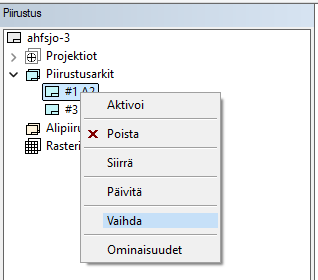
- Drawing sheets can be changed from within the drawing via the tree, either individually or by applying the change to all sheets in the drawing
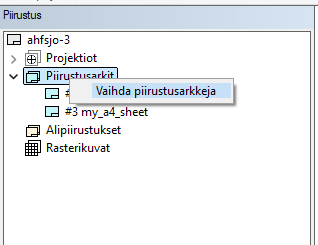
.
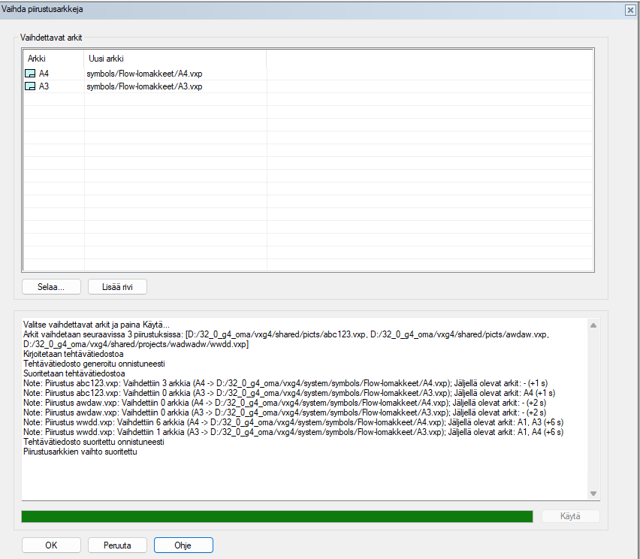
- The change opens a dialog, which allows you to select the sheets to be changed:
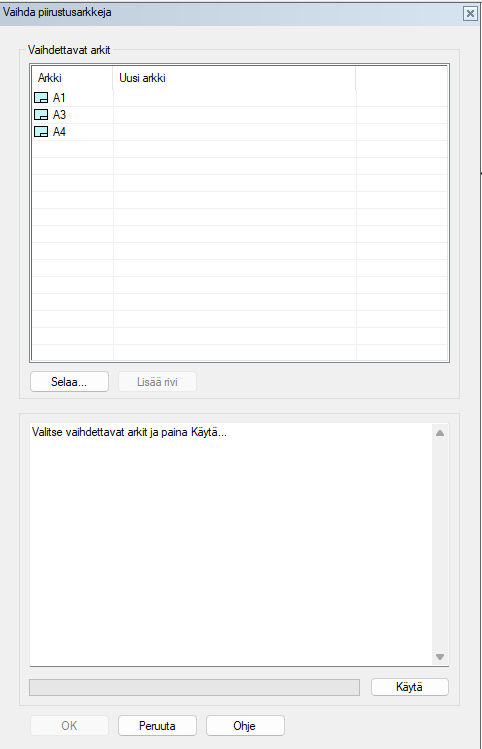
- Selecting a row and pressing “Browse…” opens the symbol selection browser. Selecting a symbol fills in its information in the “New sheet” field.
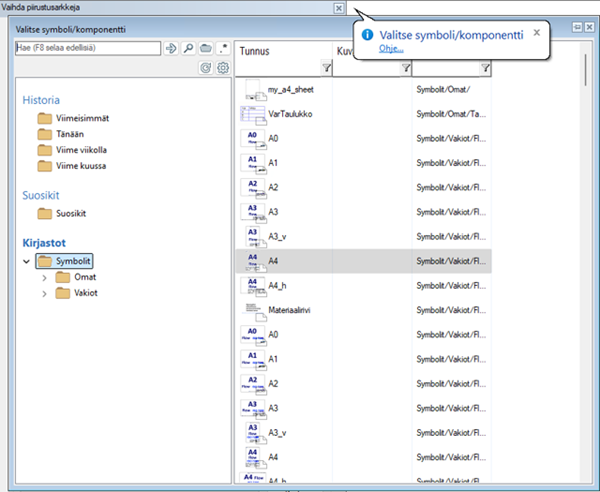
-
The Add row button is not active for multi-sheet drawings. In other cases, it can be used to add new sheets to the list in the dialog.
Pressing “Apply” performs the sheet change and prints information about the success of the change in the result window.
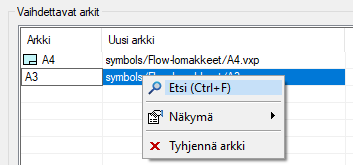
Note! An already selected form can be reset from the right-click menu:
Changing drawing sheets for drawings in the archive
- The “Change drawing sheets” functionality is started either from Archive > Maintenance > Change drawing sheets, or by calling the command CHANGE_SHEET 1.
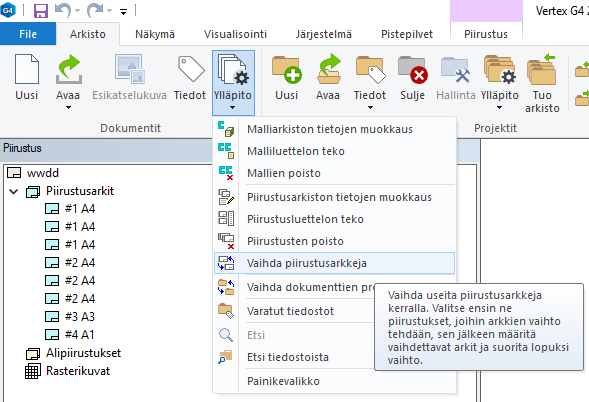
- The change takes place in three steps:
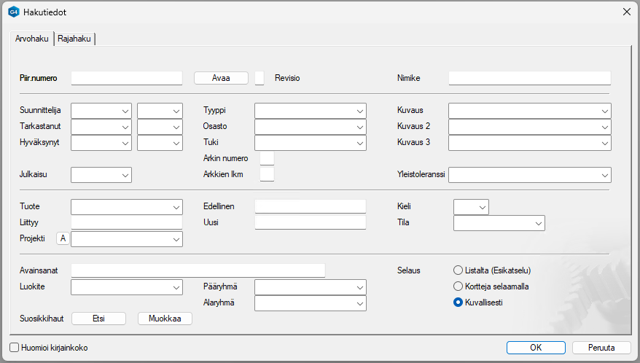
- Database search using the selpic_form search card
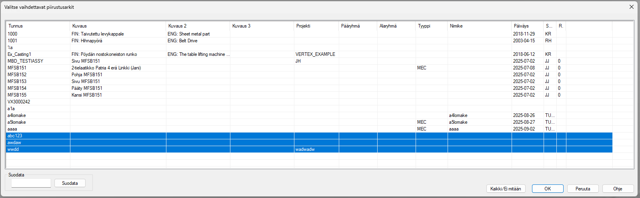
- Selecting the drawings to which the change applies:
- Filling in the change data. The data for the sheets to be changed is filled in manually using the procedure:
- “Add row”
-
Edit the sheet name in the “Sheet” field, e.g. A4
-
Select a new sheet from the symbols folder using “Browse…”
-
“Apply”
-
The change is performed using the vxtask task file and the results are recorded in the results window. The results include, among others, the names of the drawings, the number of sheets changed, and the names of the remaining sheets.
- Database search using the selpic_form search card
-
The new form is replaced with the old one so that their centers are at the same point.
-
The properties of the old form are copied to the new form, except for the name, which is taken from the new form.
-
If the edges of the old form have constraints (e.g. positioning constraints placed between edges and projections), they are reassigned to the new form.
-
The functionality uses a task file for mass replacement. The file is temporarily written to the user/drawing_sheet_change/drawing_sheet_change.txt file, which is cleaned up after running.
-
In the case of a multi-sheet drawing, the “Cancel” button returns to the situation before the replacement.