
Calculate the Building Area
You can calculate the floor areas and the total floor area for each floor of a building. The program calculates the areas based on the exterior walls. The area does not include areas where the room height determined by the intermediate floor and the ceiling is less than 1600 mm.
As a result of the calculation, the program creates space objects from the floor and total floor areas and adds hatches to their own layers in the floor plan. You can add a table of areas to the floor plan by using the function Building Area Schedule.
- SQM - Floor area
- TOTALSQM - Total floor area
Calculate the building areas as follows:
- Select Output | Zone |
 Building area.
 - Select the drawing-model pairs from which the surfaces are calculated.
- If the building has both log and framed exterior walls, select the walls by clicking them one by one, and select the Confirm function.
Space objects
Based on the calculated areas, the program automatically creates its own space objects for the floor area and the total floor area.
- S_FLOOR_AREA - Floor area
- S_TOTAL_FLOOR_AREA - Total floor area
These are collected in the components.xml file, which makes it possible to create an Excel report from them.
The same editing functions are available for space objects for areas as for other spaces. Read more in the instructions Define a Space. When you select a space in the model or floor plan, you can edit the space object from the grip points, and select editing functions from the Space tab.
The space objects will be displayed in the object tree:
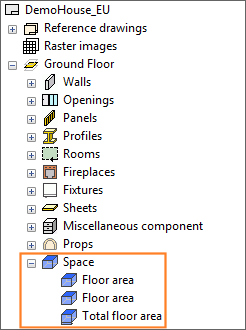
- FLOOR_AREA
- TOTAL_FLOOR_AREA
You can also add a space object from another space library using a separate function. Read more in the instructions Define a Space.
Space objects in the floor plan
By default, only a 2D representation is set for the space objects of the areas, which is a hatch in the floor plan. Hatches for different areas are added to their own layers. In the software provider's default layer scheme, the layers are:
- Floor area hatch on layer 57.
- Total floor area hatch on layer 58.
You can check the area by selecting visible layers using the  Select layers from list function on the tool strip.
- Border line on layer 119.
- Label on layer 120.
Read more: Space Label and Edit the Drawing Properties of a Space.
If you move the walls of the building, you can update the changes in the areas either by moving the hatch points or by reselecting the area calculation function.
Space objects in the model
- Select the space object in the floor plan or in the object tree.
- Right-click and select Presentation > 2D and 3D.
Calculation rules and precision
- area_calc_sets - Defines the area sets to be calculated. The standard delivery of the program includes three groups
- AREA1 - Floor area
- AREA2 - Total floor area
- area_calc_param - Defines the calculation rules for each set.
- 0, 1, 2, 3, 4, 5 - Defines the number of decimals. For example, calc_build_area_precision= 2 sets the precision to two decimals.
- 0.5 - Defines 0.5 square meter (half square feet in imperial dimensioning system) precision.
- 1.5 - Defines the precision as follows: areas less than 100 m² are displayed with 0.5 square meter precision, other areas with one square meter precision as a whole number.
Calculation rules for your own space object
You can add a space object from your own space library using a separate function. Read more in the instructions Define a Space.
If you want to use the calculation rules defined in the system settings for the space object, add the AREA_CALC_SET parameter to the Additional parameters field of the space library for the space object and enter the desired area set (AREA1, AREA2, AREA3, etc.) as its value. When the area set is defined in the library, the field name will also appear in the space properties as the value of the Area calculation set property.
It is possible to define ready-made area set options in the properties.xml file of the customer-specific space library.
Define the space object to be created in the system settings
- FLOOR_AREA
- TOTAL_FLOOR_AREA
In the system settings, you can set any space from the space library to be used for a specific area set. Define the space with the area_calc_param keyword of the area_calc_set area set and its parameter SPACEREFERENCE:
area_calc_param= [area_calc_set] SPACEREFERENCE [space code]@[space library]
For example:
area_calc_param= AREA2 SPACEREFERENCE TOTAL_FLOOR_AREA_250@space_area_volume
Areas on the building data card
- SQM - Floor area
- TOTALSQM - Total floor area
You can set another PROREG database field for the area defined by the space object in the Additional parameters field of the space library using the PROREG_FIELD parameter. When the field is set in the library, the field name will also appear in the space properties as the value of the PROREG save field property.
It is possible to define ready-made PROREG database field options in the properties.xml file of the customer-specific space library.
- You can leave a room area out of the total floor area by editing the room's data.
- Space objects created based on calculated areas are included since version 2026 (32.0). The old functionality in previous versions is available by adding the keyword set.buildingareas.old= 1 to the user/SETUP file.