
Stack Settings
Framer
You can view and edit stacks in the 3D model window. Define the placement of the stacks in the model window by editing the stack settings. In the settings, you can also select the stacking principle, according to which the order of the panels in the stack is determined.
- Do either of the following:
- Select Output | Panels and Trusses |
 3D Panel Stacking >
  Stack Settings.
 - In the document browser, select the heading
 Stacking and
  Stack Settings from the right-click menu.
The Stack Settings dialog box is opened.
- Select Output | Panels and Trusses |
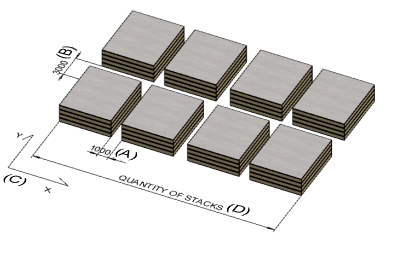
- Define the placement of the stacks in the model window.
- Distance between stacks (A)
- Distance between stack rows (B)
- Direction of stacks (C)
- Quantity of stacks (D)
- Select the others settings:
- Update items after moving - When the property is selected, and you move a panel from one stack to another, the change is automatically updated to the stack data. When the property is not selected and you move a panel from one stack to another, the change must be updated to the stack data using the context-sensitive menu function Update stacks.
- Default presentation - Select the panel representation in the model window.
- Box - A box formed around the panel is displayed in the model window.
- Layers - The layers of the panel are displayed in the model window.
- Parts - The parts of the panel are displayed in the model window.
- Stacking principle -The panels you add to the stack can be thought to form a group of panels. The stacking principle determines the order of the panels in the panel group.
- Length - In a horizontal stack, the longest panel to the bottom of the group. In a vertical stack, the longest panel to the edge of the group.
- Width - In a horizontal stack, the widest panel to the bottom of the group. In a vertical stack, the widest panel to the edge of the group.
- Area - In a horizontal stack, the panel with the largest area to the bottom of the group. In a vertical stack, the panel with the largest area to the edge.
- Panel ID - In a horizontal stack, the panel with the highest label in alphanumeric order to the bottom of the group. In a vertical stack, the panel with the highest label in alphanumeric order to the edge of the group.
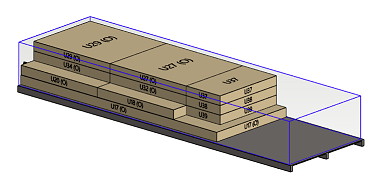
- Multi-panel rows - In a horizontal stack, the so-called bottom rows come at the bottom, the number of which you can enter in the Base rows field. The longest panels come at the base rows, one panel per row. Several small panels can be placed in the same row on top of the base rows.
- Base rows - The field is enabled when the stacking principle is Multi-panel rows. Enter the number of base rows in the field. The longest panels come at the base rows, one panel per row. Several small panels can be placed in the same row on top of the base rows.
- Panel size calculation - The panel size calculation affects the size of the stack. Choose how to calculate the size of the panel:
- Framing volume - The size is determined by the space reservation of the panel. Parts outside the space reservation are not taken into account.
- All parts - The size is determined by all parts of the panel (profiles, sheets, macro components), including parts that extend beyond the space reservation.
- Only profiles and sheets - The size is determined only by the profile and sheet parts of the panel. Profiles and sheets extending beyond the space reservation are also taken into account. Macro components are not taken into account at all.
The selection is saved in the memory. The default value is set in the system settings in the bdsxx keyword group with the keyword panel_size_by_parts. The keyword can have the values:
- 0 = Framing volume
- 1= All parts
- 2 = Only profiles and sheets
Note: The keyword is no longer read from the system settings after the calculation method is selected for the first time in the stack settings. After this, you can only change the calculation method in the stack settings.
- Confirm by clicking OK.
Note:
- The positioning of the panel group in the stack box is defined in the stack properties under Alignment.
- The final formation of the stacks is affected by the dimension and weight limits selected in the stack properties. When no more panels can fit in the stack, the program creates a new stack.