
Import an Archive
General
- You can import models and drawings in another file format and create a Vertex project from them.
- You can import models and drawings in all formats that Vertex G4 can read. Several different formats can be included in the same project.
- The system connects the drawing to the model if they have the same name without a file extension. For example, the
cylinder_assembly.dwgandcylinder_assembly.stpfiles are imported, and the corresponding drawing is attached to the.vxmmodel created from the latter. The models and drawings are imported to G4 anyway, even if no matching pair is found.
Import a project with one function
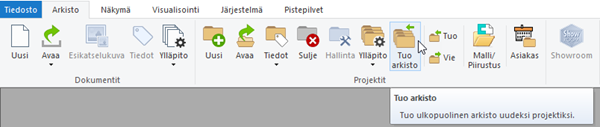
- Open the function from the Archives tab.
- The top text field is reserved for the archive, where you can either enter the path manually or search for a suitable path by opening the folder directory browser by clicking Open. The program checks that the path is correct when you click Import.
- The project name field should contain the name of the project to be created with the import. The same rules apply here as when creating a project normally, i.e. a certain number of characters and characters are allowed. The number of characters depends on the length allowed for the PROJ_ID field in the PROREG database.
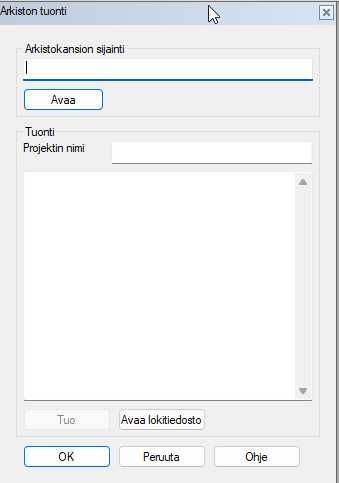
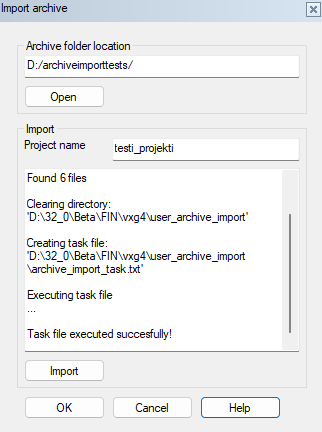
When both fields contain text, the Import button is activated. The text field displays information about where the command file was created.
Note:
- When the import is complete, the created project and the models and drawings added to it can be found in the Projects section of the archive browser.
- The import may take some time depending on the number of models to be imported and their size. During execution, the process steps related to the import are shown in the lower left corner of the program. This happens automatically when the command file is run. During the process, the functions of the dialog box are not available, because the import is performed elsewhere.