
Listings of the Selected Project Database Type
Process and Instrument Design
- On the PI schema tab, open the Components menu
 .
. - Select the database type for which data will be collected in the list. For example
 Pipes,
  Equipments,
  Instruments.
 -
A list view according to the selected type opens. Project pipeline list as an example.
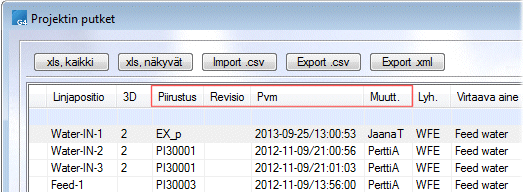
- Print a list of components according to the selected type. Select the list format: xls, all, xls visible or Export.xml.
- For example, a listing in xml format. Click the Export .xml button.
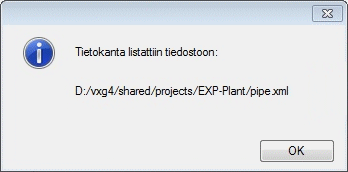
- Select OK.
Example:
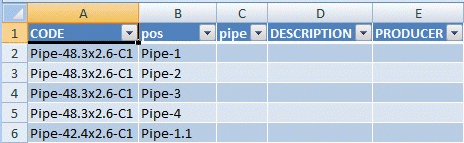
- Continue according to the selected listing format. Save the list as a file.
Schematic design listings
- The listings use special Excel report templates, which can be found in the path system\forms\PI-ExcelTemplates.
-
Each PI database type has its own report, but there are two variants for equipment (actuator and process valves).
-
-
When the user creates a report, the report template in question is copied to the path custom\forms\PI-ExcelTemplates.
-
If you are using report templates older than version 31.0 and want to continue using them, copies of the type-specific list views have been left in the system/forms folder. The old files have been named by adding _old to the end of the original name (e.g. pi_pipe_old).
-
The old parameter programs related to the old listing formats have also been left in the environment for the transition period. Comment entries have been added to the old parameter programs, stating that the parameter programs have been replaced by the new parameter program pi_to_xls_template.prg.
-
The old report templates have also been left in the environment.
-
Flow system and schematic design listings
-
Mostly the same report templates are used as in CAD, but with minor changes, because CAD and Flow use different Excel technologies.
-
The Excel templates are included in all Flow installations. In order for the reports to be selectable, the keyword application_area = PLANT must be set in Flow's system settings.
-
The listings are run via the personal trolley, i.e. the desired device cards are added to the personal trolley, from which the data can be listed by selecting the report template for the correct device card type (Tools > Reports).