
Text Setup
The default properties of various texts in 2D drawings are defined in the system settings (Geometry drawing properties, GEOMPROP keyword group).
- Select
 >
>  System Preferences >
  Edit.
Edit. - If necessary, clear the
 Administrator's View checkbox.
 - Select Geometry drawing properties/Text setup.
- Select a text from the Name of the text set list.
- Edit the default values of the properties:
- Font - For example, Arial, Courier New, Times New Roman, etc.
- Drawing layer - Text will be added on the selected layer.
- Text rotate - Sets the text in the selected angle in relation to the horizontal plane.
- Line width - The line width can be seen in a printed drawing.
- Hiding text - The property takes effect in the hatched areas. The hiding text covers the hatch and shape lines when hidden lines have been removed from the drawing.
- Underline
- Boxed - The text is boxed. If the text is both hiding and boxed, the boxing area defines the size of the covering area.
- Text height - The effect depends on the drawing scale. The property can be either absolute or relative:
- A positive value means that the height is absolute (fixed).
- A negative value means that the height is relative.
- Text slant - Slant is a factor that slants a character in relation to the height of the character. A negative factor slants the character to the left.
- Rel. Width - A factor that narrows or widens the character in relation to the height and width of the character.
- The character is narrowed when the factor is between 0 and 1.
- The character is widened when the factor is larger than 1.
- Character distance - This factor affects the space between characters. The character distance is relative to the character height.
- Flow distance - This factor affects the spacing between rows. The line spacing is defined in relation to the character height.
- Locating point - Defines the vertical and horizontal alignment of text at the locating point.
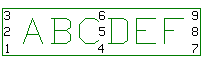
- Description - Type a description in the text field.
- Color - Select a color from a palette by clicking the Select color button.
- Confirm by clicking OK.
- Restart Vertex.

Note:
- If Administrator's View is selected, the keyword is text.
- The function > System Preferences > Edit is only available if you are the system administrator.