
Save a Diagram Symbol in the Symbol Library
Process and Instrument Design
Since version 32.0 (2026), diagram symbols are in their own library, which has its own function for editing and viewing. The function is available on the System tab Libraries  .
.
A diagram symbol can be saved to the symbol library, or it can be drawing-specific.
- Draw a symbol.
- You can add a symbol pattern in the covering layer, in which case the symbol covers the diagram line when you select Remove hidden lines.
Save to Library
- Select all symbol lines and any covering hatch.
- Select the context-sensitive function Save to diagram symbol library.
- The program opens the library browser. Select the Custom libraries title from the menu on the left side of the browser.
- Select the desired library from the list on the right side of the browser by double-clicking it or create a new library using the context-sensitive menu function Create new library.
- The program opens the database view PI diagram symbols and an empty row for the new symbol.
- Enter at least the mandatory information, i.e. the fields marked with an asterisk in the title on pages 1 and 2.
- Code - Required. The unique identifier of the symbol.
- Type - Select the symbol type from the menu that opens from the arrow on the right edge of the field. Based on the selected type, the program later opens a type-specific database view for entering information.
- Thumbnail - Required. The program uses this as the file name for the icon displayed in the browser. You can name the thumbnail freely or use, for example, the value you entered in the Code field.
- Browser folder - Required. This will later appear in the selection browser as a directory under which you can find the symbol you saved.
- Description -The descriptive text that appears with the symbol in the selection browser.
- Scale - Page 2. Scale factor for the symbol. Used as default when adding a symbol to a diagram.
- Pos. - Page 2. Default height of the position text. If the value is not filled in, the current general text height value is used when adding the position text.
- Symbol’s attribute database default data - Page 2. You can enter default data to be filled in the attribute data. Usually, at least the symbol classification (CLASSIFICATION) is given and based on the classification, an already added symbol can be changed to another later so that the entered data is preserved.
- Once the data has been entered and approved, a new row is created in your custom symbol library for the PI diagram symbol.
- Click the locating point or points. At least one locating point must be assigned to the symbol. If you want the symbol to rotate automatically in line with the diagram line below when adding it, three locating points must be assigned. These points must be in the same line, i.e. on an imaginary line drawn between the outermost points.
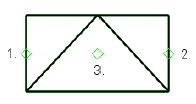
- If necessary, click a text point. The position text will later be automatically placed at this point. If a text point is not entered, i.e. the function is confirmed as complete at this stage, the position text will be freely placed on this symbol during positioning.
- Select OK.
- The symbol can now be added from the Symbols group on the PI schema tab by selecting
 Diagram symbols
 Add diagram symbol.
 - When the symbol selection browser opens, update it with the context-sensitive function Refresh browser. Select the symbol you saved under your own symbol library.
Save as drawing-specific
- Select all symbol lines and any covering hatch.
- Select the context-sensitive function Define group.
- Select the newly created group and the context-sensitive function Store group as symbol to active drawing.
- Enter a code. The code can be freely defined, i.e. it is only needed internally in the program when creating the symbol.
- If the created symbol is in a drawing that is defined as a PI diagram, when you double-click the symbol, you will be asked for the type of PI symbol. Based on the selected type, the program later opens a type-specific database view for entering information.
Saving Diagram Symbols Imported into Vertex
Diagram symbols, such as DWG blocks, that have been imported from another system can be defined as diagram symbols and they behave like drawing-specific symbols. The drawing in which the symbol is used must be defined as a PI schema drawing.