
Horizontal Structure Libraries and Types Dialog Box
Edit the floor and ceiling library in the dialog box. You can only edit customer-specific libraries in the custom/complibs/lbs folder. You can create a new library, edit the default properties of structures, add, and delete structures.
- Structure libraries and types
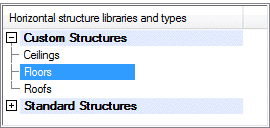
- You may have several libraries available. The structures are grouped by selection groups in the libraries. If you wish to edit an existing library, select the library and selection group from the list in the top left-hand corner of the dialog box. You can search for a library by activating the list box and pressing Ctrl+F. Enter the desired character string in the text field. If you wish to collapse or expand all libraries, right-click to open the context-sensitive menu and select Expand all or Collapse all.
- Floor or ceiling
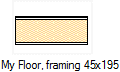
- If you wish to edit the layers and parameters of an existing structure, select the thumbnail image of the structure in the bottom left corner of the dialog box. You can search for a floor or ceiling by activating the list box and pressing Ctrl+F. Enter the desired character string in the text field.
 You can only edit the floors and ceilings in the customer-specific library in the custom/complibs/lbs folder. If the structure belongs to the system library, the following text is displayed at the bottom of the dialog box: "Please notice that this is a system horizontal structure library and cannot be edited."
- Parameters of a floor or ceiling
- Floor or ceiling parameters are available for selection when you have made a thumbnail image active by clicking, and no layer is selected in the Layers table or the preview image. If necessary, deselect a layer by clicking an empty space in the Layers table.
- Currently, you can select the U-value parameter for a floor or ceiling. The U-value is used in the energy calculations. Indicative U values have been determined for the building components in the structure libraries included in the basic software delivery. If you edit the number, thickness or materials of layers, the U value is not updated automatically. If necessary, recalculate the U value and update the new value to the properties.
- Layers
- Select a type, material, thickness, and bottom and top height for each layer of the floor or ceiling. You can add and delete layers.
- A floor or ceiling must always have a frame layer.
- Layer Parameters
- Layer parameters are available for selection, when you have selected a layer in the Layers table or in the preview image.
- Preview
- The model and cross-section of the structure is displayed in the preview windows.