Add a Plane with the Ribbon Bar Function
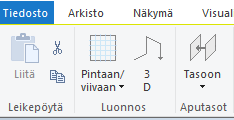
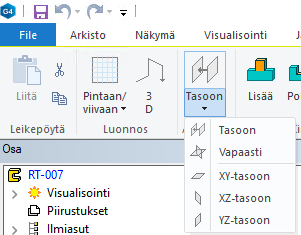
You can also create auxiliary planes from the Part tab of the ribbon, where you can find the Help planes group. Auxiliary planes can be created to To plane and Free, which are the same functions as selecting an auxiliary plane / surface from the model (or tree) and selecting the corresponding functions from the right-click menu. In addition, you can create planes from the ribbon to basic auxiliary planes by selecting one of these planes, for example from tree / model.
Select the desired option from the Help planes group of the ribbon.
- To plane: Select a plane from the model. You can enter a value, formula, and name.
- Free: Select a point, line or face from the model. You can also leave the plane freely in the air.
- XY-plane: You can enter a value, formula, and name.
- XZ-plane: You can enter a value, formula, and name.
- YZ-plane: You can enter a value, formula, and name.
Modeling mode, model on screen. On the Part tab, in the Help Planes group, open the To plane menu.
Select one of the following:
Enter the values:

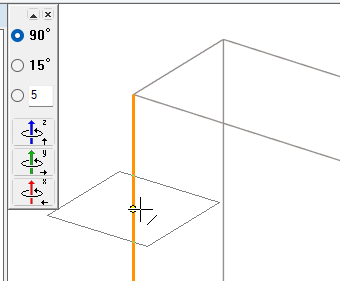
If you select Free, move the plane to the desired location in the model:
Add the constraints.
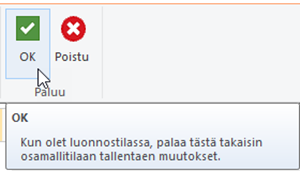
Exit the sketching mode.