
Update Database Contents
You can use this function to update the contents of the selected database field by field from another database. The program automatically searches for matching pairs of fields based on the field names. If necessary, you can edit the matching paris of fields.
- Select System | Databases |
 Maintenance >
  Update .
The program asks for the database to be updated.
- Select the database to be updated, and click Open.
The program asks for the updating (source) database.
- Select the updating database, and click Open.
The program opens the dialog box Update a Database With Another Database.
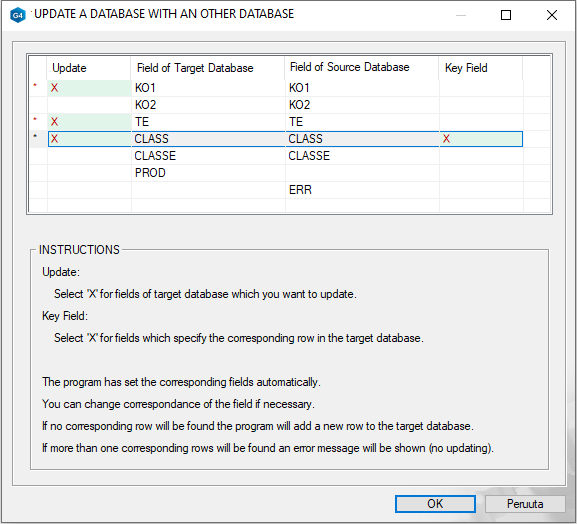
- On the left is the name of the field to be updated, i.e. the name of the field in the target database.
- On the right is the name of the field to be updated, i.e. the name of the field in the source database.
- In the Update field list, select X for all the fields whose contents you want to update.
- In the Key Field list, select X for the fields that determine the corresponding row to be updated.
- If necessary, select the matching field for the field of the target database in the column Field of Source Database.
- Click OK to accept the selections.
The program asks for the name of the old database.
- Enter a name for the old database, and click Save.
- The program saves the non-updated database with the given name in the folder ../custom/dbases.
- This database is a backup of the situation before the database is updated.
- If there is already a database with the same name in the ../custom/dbases folder, the program asks if it is deleted.
- Answer Yes, if you want to overwrite it with the old database being backed up.
- Answer No, if you want to give the old database being backed up a new name.
Note: If matching rows are not found in the target database, the program adds a new row. If more than one matching row is found, the program displays an error message and the rows will not be updated.