
Import a Point Cloud
Point clouds
-
Select Point clouds |
 Import. In the Open dialog box, navigate to the folder where the cloud file(s) are located and select the file type you want. You can import several point clouds at once. Select several point cloud files by holding down the Ctrl key.
 - Select the import settings in the Import Point Clouds dialog box.
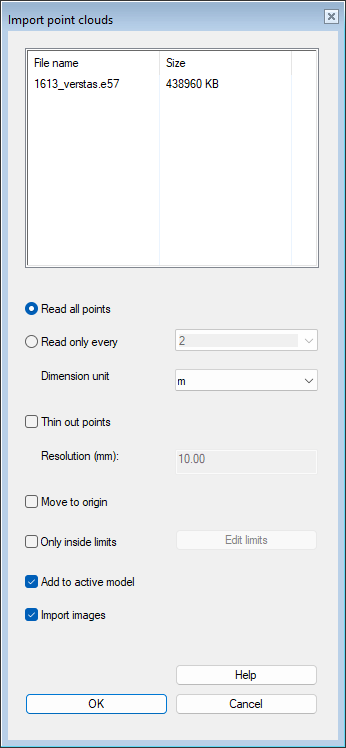
- Import as all points / read only every n points
- If you want to reduce the number of points already in the reading phase, select Read only every and select a number value from the list or enter a value in the field. The higher the value, the more thinned out the result.
- Dimension unit
- The unit used in point cloud scanning. The default unit for importing to Vertex is meter.
- Thin out the points
- Upon import, you can remove overlapping or other nearby points with the desired precision. Instead of deleting every nth point, this thinning method uses a cube with one side of the length of which is the value entered as a resolution. As a result, one point of the point cloud remains inside the cube. So this is an alternative or concurrent thinning to the Read only every n point option. If the file imported in e57 format contains individual subclouds, thinning is applied to all of them at the same time.
- Move to origin
- The points in the point cloud are located in the origin. In this case, the MinX, MinY, MinZ point of the original cloud is placed at the origin of the model. By default, the origin is at the scanning spot and the scanned points are at the actual position relative to it.
- Only inside limits
- The program filters out all points that are outside the current 3D limits. Click Edit limits to move clipping the limiting surfaces in the model.
- Add to active model
- The property is enabled by default when a model is active. The point clouds you import are read directly into the active assembly as their own local parts.
- Import images
- The feature is available when the point cloud file format is E57. Photos taken from the scanning target can be saved in a point cloud file of this format. You can import photos into the model along with the point cloud. Imported images are saved to a vxm file when you save the model. Imported images cannot be deleted.