Define a common rule for converting an IFC object to a Vertex BD object in the Create conversion rule dialog box. The conversion is performed using either the Convert IFC Objects to Vertex Objects or Convert the Selected IFC Object to a Vertex Object function.
- Select converted object type
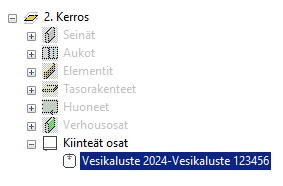
- Select the type of the converted object and, if necessary, a subtype from the list. The converted object appears in the branch of the selected type in the object tree.
- Conversion
- The converted object gets the property sets defined for the IFC object when you select the Include imported IFC property sets option.
- You can create a 2D representation for the converted object in the floor plan by selecting Enable 2D presentation. From the 2D layer list, select the layer to which the 2D geometry will be added.
- After conversion, you can choose to enable or disable the 2D presentation of an individual object, or change the layer of 2D geometry by editing the object's properties.
- You can also select the 2D presentation for the object afterwards as follows:
- Select an object.
- Right-click to open the context-sensitive menu.
- Select Presentation > 2D and 3D.
- You can perform the conversion by selecting a component from the component library to which the IFC object will be converted. Click Select component and select the component in the browser.
-
Note: The component must have the Name (CODE) property in the library.
- After conversion, the position and location of the component in the model will be the same as that of the original IFC object.
- If the component has the parameter G4P=2 set in the component library, the converted parts will be of type G4 parts/assemblies. Otherwise, they will be building components.
- You can clear the component selection by clicking Clear selection.
- If you do not select a component, the geometry of the IFC object will not be converted to Vertex geometry, but after conversion, you can handle the object, for example, by moving or copying it, unlike an object inside the IFC model. In the selection filter, objects converted in this way will be of type Converted from IFC. When you export a building model to an IFC file, the object converted by a common rule is included in the export. After the conversion, you can edit the properties of the converted object. You can save a converted object to a component library by first copying it to a new window, and then selecting the save function.
- Edit name
- After the conversion, you can edit the name of an individual object by editing the properties. If you have selected several objects to be converted, you can make a mass change to the names during the conversion by replacing the string appearing in the names with the string you want.
- Select Enable name editing.
- Enter the string that appears in the name in the Find what field.
- Enter the string you want to replace it with in the Replace with field.
- The search is case-sensitive when you select Match case. To search for a string using a regular expression, select Use regular expressions.
- The modified object names appear in the object tree after the conversion.
