
Convert IFC Objects to Vertex Objects
IFC Converter
When you have imported an IFC model as an object model, you can convert IFC objects to Vertex BD objects.
You can convert all IFC objects that meet certain search criteria into Vertex parts at once. You do not need to select the objects separately in the model; the program searches for all IFC objects that meet the search criteria specified in the conversion rule from the IFC model and performs the conversion specified in the rule on them. You can define conversion rules during conversion or by editing the conversion rule library with a separate function.
- Select IFC | Conversions |
 Create Vertex parts from IFC objects.The Create Vertex parts from IFC objects dialog box opens. The dialog box contains conversion rules from the system library, customer-specific library, and building-specific library. The rules are grouped by object type.See the end of this help page for how to edit the conversion rule library in the dialog box.
- System library rule has white background.
- Building-specific library rule has green background.
- Customer-specific library rule has blue background.
- Select the checkbox for the desired conversion. You can select multiple conversion rules. You can select all or clear the selections by clicking All/None.Note: Starting with version Vertex BD 2026 (32.0), windows and doors are converted according to their own conversion rules. The conversion of windows and doors requires that the object type IfcWall, to which the openings belong, is first converted to a Vertex wall.
- Confirm by clicking OK. The results of the conversion open for viewing in a separate window.
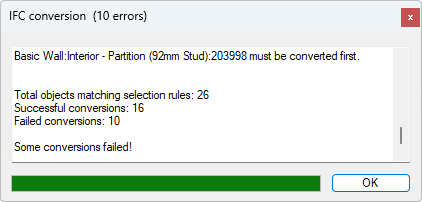
- The original IFC object is not deleted but it is hidden, and you can restore it by deleting the Vertex BD object. The Vertex BD objects converted from the IFC objects are shown in the object tree alongside other modeled parts.
- You can also convert IFC objects by selecting the objects to be converted in the model. Read more in the instructions Convert the Selected IFC Object to a Vertex Object.
Edit the conversion rules
In the dialog box, you can edit or delete existing rules or create new rules. As a system administrator, you can save the rule in your own customer-specific conversion rule library. The rule is available in all buildings. If you do not have system administrator privileges, you can save the rule in a building-specific library.
Edit the existing conversion rules in the dialog box as follows:
- Select an existing building-specific conversion rule (green background) or customer-specific conversion rule (blue background).
- Right-click and select one of the following:
- Edit - Edit the rule in a dialog box: Create a Conversion Rule Dialog Box.
- Rename - Enter the rule name in a text box.
- Delete - Delete the rule from the building-specific library.
- Right-click and select one of the following:
 New wall conversion rule
 New profile conversion rule
 New slab structure conversion rule
 New door conversion rule
 New window conversion rule
 New space conversion rule
 New common conversion rule
The browser opens.
- In the left side browser pane, select the main folder:
- Custom libraries - You can select the folder when you have system administrator privileges.
- Building libraries
- In the right-hand browser pane, right-click to open the context-sensitive menu.
- Select Create new library.
The Create a New Library dialog box opens.
- Click Select, and select the library to base the new library on. The browser opens.
- In the left browser pane, select one of the following main folders:
- System libraries - System’s standard libraries.
- Custom libraries - Customer-specific libraries.
- Building libraries - Building-specific libraries.
- Double-click the desired library. A new library is created based on the selected library.
- Type a description of the new library in the text field.
- Confirm by clicking OK.
- Double-click the library in the right side browser pane.
- Define the rule in the dialog box: Create a Conversion Rule Dialog Box.