
Create a Mesh
Point clouds
The  Create mesh function allows you to create a surface triangulation using the points in the point clouds, which improves the visibility of the point cloud in shaded mode, especially when zooming in close. However, surface triangles are not geometric elements to which geometric constraints can be bound, for example, but are only surfaces visible during shading.
- Select Point clouds | Create mesh.
The Triangulate dialog box opens. The dialog box shows the point clouds found in the model. When you move the cursor to a point cloud row in the list, the program marks it in the model and in the feature tree.
If no surface triangulation has yet been created for the point cloud, the column Status has the value Not created.
- Select
 or clear
  the selection of a point cloud in the list. You can start triangulation for several selected point clouds.
 - Select the triangulation parameters.
- Fill gaps - Adds points so that a ball the size of the upsample search radius has the desired number of points. The aim is to fill the gaps left in surface triangulation.
- Thinout - Removes points so that the distance between adjacent points is desired. The aim is to reduce the size of the model.
- Search radius - Adjusts the maximum size of the triangles.
- Click Preview to see how the selected parameters affect the surface mesh creation using a test area. Move the cursor in the model, and select the appropriate test area in the point cloud.
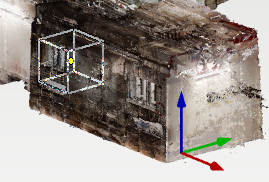
Under the preview window, a list of variables that affect triangulation and their values is presented.
- Click Start triangulation to start surface triangulation according to the parameters selected in the dialog box.
You can exit the dialog box by clicking Close, but the program will still continue any processes that are running in the background.
The program shows the progress in percentage in the Status column. When surface triangulation is complete, the Status column will show Created.
If you want to cancel the the triangulation, click Delete. The program asks whether to cancel the surface triangulation. When you click Yes, the triangulation of the point cloud resets.
By default, triangulation is not visible, so the value in the Visibility column is Hidden. Click Show to display triangulation in the model, or Hide to hide the triangulation.
If you want to delete the triangulation completely, click Delete. The program will ask for confirmation and delete the triangulation when you select Yes.